Animations vs Animation Controllers
People often use these two words as if they mean the same thing, but they do different jobs.
What is an animation?
An animation is a timeline of movement. It tells each bone of the model where to be at each moment. A walk animation, for example, swings the legs and arms back and forth over about a second and then loops.
What is an animation controller?
An animation controller decides which animation plays and when. It watches the state of the player, such as whether they are moving, sprinting, swimming or sleeping, and switches between animations automatically. You can think of it as the director, while the animations are the actors.
YSM uses the Bedrock Edition format for both, which is why most creators build them in Blockbench.
How a Controller Is Built
An animation controller is made of three parts: states, transitions and conditions.
States
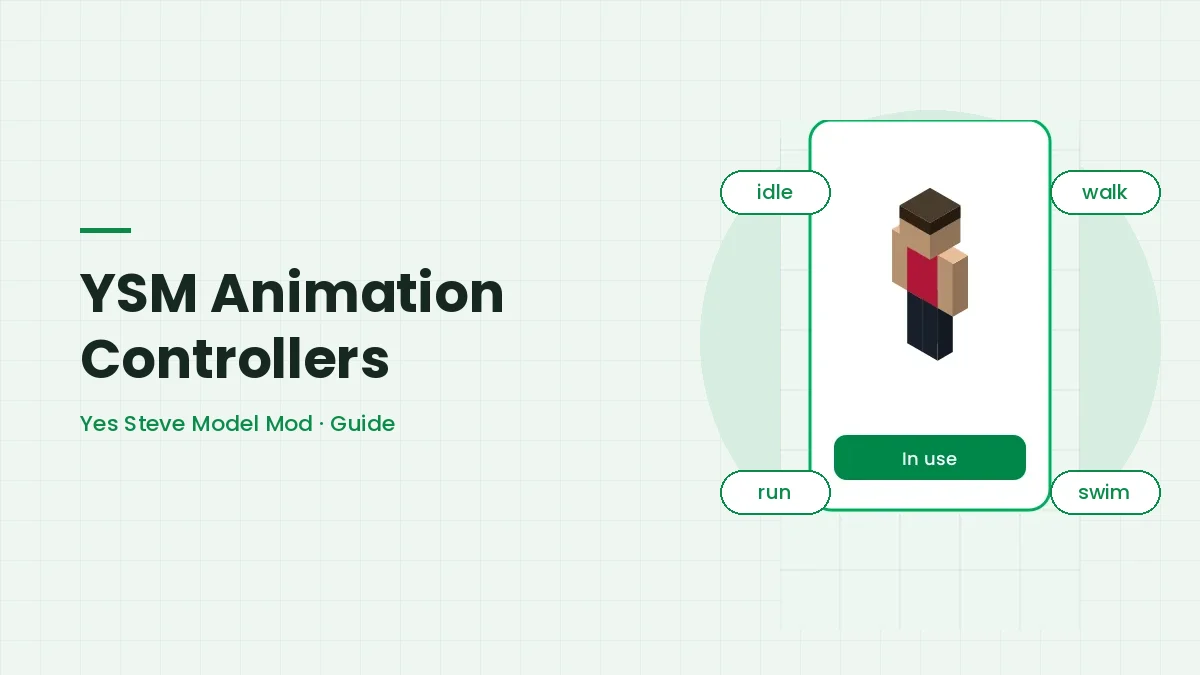
A state is a situation the character can be in. Each state plays one or more animations. Typical states for a player model include:
- idle – standing still
- walk – moving at normal speed
- run – sprinting
- swim – moving in water
- jump or fall – in the air
- sneak – crouching
- sleep or sit – special poses
Every controller has a starting state, usually called default. The controller begins there and moves to other states as conditions change.
Transitions
A transition is a rule that moves the controller from one state to another. For example:
- From idle to walk when the player starts moving.
- From walk to run when the player starts sprinting.
- From run back to walk when sprinting stops.
Each state lists the states it can move to and the condition for each move.
Conditions with Molang
Conditions are written in Molang, a small expression language used by Bedrock models. Molang can read information about the player, such as movement speed or whether they are on the ground, and turn it into true or false. When a condition becomes true, the transition happens.
YSM provides its own set of variables and queries that describe the player's state. The names available depend on your YSM version, so always study a working model or the documentation bundled with your release before writing your own conditions.
Blending: Making Changes Look Smooth
Without blending, a character would snap instantly from one pose to the next, which looks robotic. Controllers can use a blend transition time, usually a fraction of a second, to fade from one animation into the next.
Good blending habits
- Use short blends of about 0.1 to 0.3 seconds for movement states.
- Use longer blends for slow actions such as sitting down.
- Avoid blending on very fast actions like attacks if it makes them feel sluggish.
Common Controllers in a Player Model
Most YSM models use more than one controller at a time. Each one handles a separate part of the movement.
Movement controller
Handles idle, walk, run, swim and fall. This is the main controller and the one players notice most.
Upper-body or action controller
Handles arm actions such as attacking, using items, blocking with a shield or drawing a bow. It runs at the same time as the movement controller, so a player can walk and swing a sword together.
Extra controllers
Creators often add controllers for details such as tail movement, ear twitches, blinking eyes or capes. Because they run independently, they keep the character feeling alive even when standing still.
Building Your First Controller in Blockbench
Step-by-step outline
- Create your animations first in the Animate tab: at least idle, walk and run.
- Make idle and walk loop by enabling the loop option.
- Add an animation controller in the Animation Controllers panel.
- Create states named idle, walk and run, and assign each its animation.
- Add transitions between them with Molang conditions based on the player's movement.
- Set blend times for smooth changes.
- Export the animations and controllers into your model folder.
- Copy the folder into
config/yes_steve_model/customand reload in game.
Our custom models guide explains the folder layout and reload process.
Testing your controller
After reloading, select the model with Alt + Y, switch to third person with F5 and test each state:
- Stand still and check the idle animation.
- Walk, then sprint, then stop.
- Jump, fall from a height and land.
- Enter water and swim.
- Attack and use items while walking.
Watch for snapping, frozen poses or animations that never stop. Each of these points to a specific problem described below.
Troubleshooting Animation Problems
The model stays in a T-pose
The animation file did not load, or the bone names in the animation do not match the model. Bone names are case-sensitive, so LeftArm and leftarm are different bones. Check the log in logs/latest.log for animation errors.
The character gets stuck in one state
A transition condition never becomes true, or there is no transition back. Every state should have a way out. For example, run needs a path back to walk or idle.
Animations flicker between two states
Two transitions fire back and forth because their conditions overlap. Make the conditions clearly separate, for example by using a small speed threshold rather than exactly zero.
Movement looks robotic
Add or increase blend times, and make sure looping animations start and end in the same pose.
A Simple Example in Words
It helps to picture a small movement controller before you open Blockbench. Imagine a controller with three states:
- idle plays a gentle breathing animation and loops forever.
- walk plays a walk cycle and loops while the player moves.
- run plays a faster run cycle while the player sprints.
The transitions read like plain sentences. From idle, go to walk when the player's speed rises above a small value. From walk, go to run when the player is sprinting, or back to idle when the speed drops to almost zero. From run, return to walk when sprinting stops. Each transition uses a short blend so the change looks natural.
Once this small controller works, you can add more states one at a time, such as swim, fall and sneak, and test after each addition.
Tips From Experienced Creators
- Keep controllers small. Several simple controllers are easier to fix than one giant one.
- Name states clearly. You will thank yourself when you return to the model months later.
- Copy before you change. Make a backup of the model folder before big edits.
- Study good models. Open well-made models in Blockbench to see how their controllers are structured.
- Test on a server too. Animations that work alone should also be checked when several players are visible.
Frequently Asked Questions
Can I use Bedrock animations from other projects?
Sometimes, if the bone names and structure match your model. In most cases you will need to adjust them.
Do animation controllers affect performance?
Simple controllers have very little impact. Complex models with many bones and controllers can cost more, especially when many players are visible. See our performance tips.
Conclusion
Animations describe how a model moves, and animation controllers decide when each movement plays. Build a few clean animations, connect them with clear states and transitions, add short blend times and test every movement in game. With that foundation, you can turn any custom model into a character that walks, runs and fights naturally in Yes Steve Model.